
PojavLauncher: How to Play Minecraft Java Edition on Android (2026 Setup)
Have you ever wanted to play the real PC Minecraft Java Edition on your Android phone with authentic Redstone, Hypixel servers, and PC mods like Sodium and OptiFine? It is 100% possible thanks to PojavLauncher!
Mojang does not compile Java Edition as a standalone APK. Shady websites advertising “Java APK downloads” are scams that distribute malware. PojavLauncher is the official open-source OpenJDK environment that runs authentic PC Java Edition directly on your smartphone legally and safely.
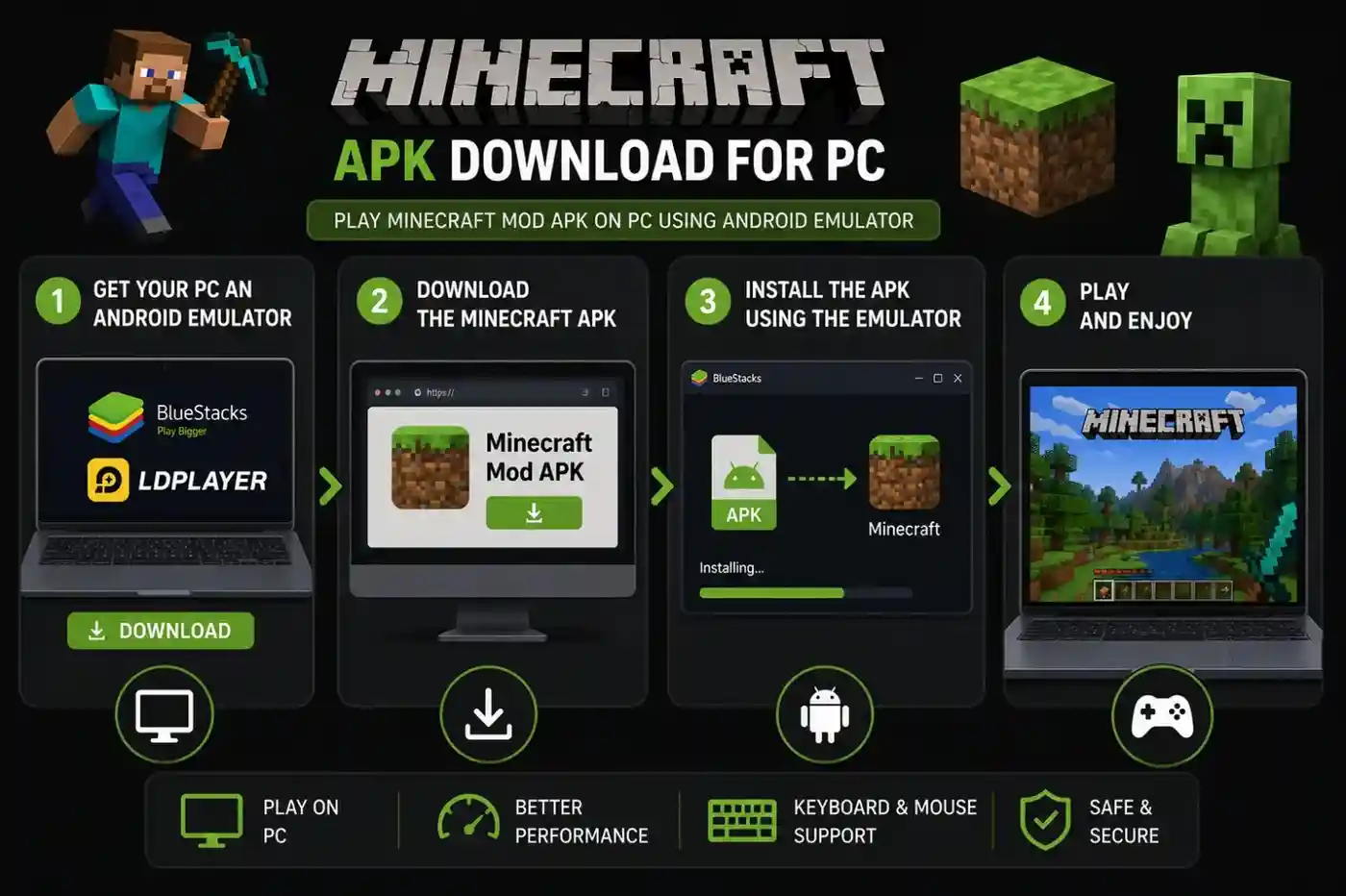
Step 1: Install PojavLauncher on Your Android Device
- Download the free PojavLauncher app from the Google Play Store or directly from the official PojavLauncher GitHub releases page.
- Launch the app and grant storage access when prompted.
- Tap Add Account:
- Choose Microsoft Account if you own Minecraft on PC.
- Choose Local Account to play offline in single-player mode.
Step 2: Allocate Mobile RAM for Smooth Gameplay
To prevent lag and memory crashes, give the Java virtual machine enough memory:
- Tap the Settings Gear icon in the top right corner of PojavLauncher.
- Go to Java Tweaks > Memory Allocation.
- If your phone has 4 GB RAM, set memory to 1500 MB – 2000 MB. If your phone has 6 GB–8 GB RAM, set memory to 3000 MB.
- Under Renderer, select Holy GL4ES or Vulkan (Zink) for maximum GPU acceleration.
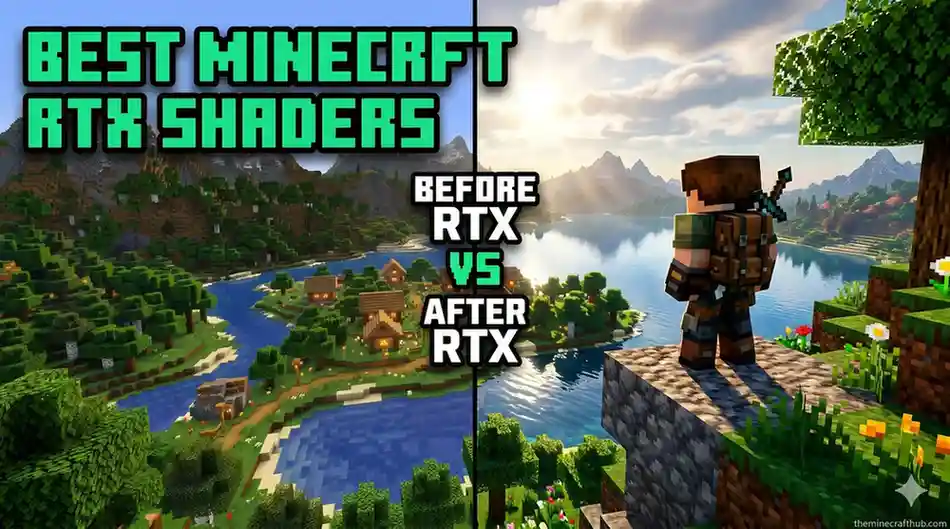
Step 3: Boost to 60+ FPS with Fabric & Sodium
Default Java Edition will struggle on a mobile chip. Installing Sodium quadruples your mobile frame rate:
Install Fabric
In PojavLauncher, tap Install .jar and select the Fabric Installer for 1.21.
Download Sodium
Download Sodium.jar and Lithium.jar from Modrinth on your mobile browser.
Paste into Mods Folder
Use ZArchiver to place the jars into Android/data/net.kdt.pojavlaunch/files/.minecraft/mods.
Launch & Play
Select the Fabric profile, tap Play, and enjoy buttery-smooth 60 FPS Java Edition!
Customizing Mobile On-Screen Touch Controls
PojavLauncher overlays customizable virtual buttons on your glass screen:
- PRI: Primary Attack (Left Click / Break block).
- SEC: Secondary Action (Right Click / Place block / Interact).
- GUI: Hides or shows the virtual button overlay.
- DEBUG: Opens the famous PC F3 debug screen to check coordinates and FPS!
- KEYBOARD: Opens your Android virtual keyboard to type chat commands.
You can also connect a Bluetooth mouse and keyboard or an Xbox controller for a full desktop PC experience right on your phone.
Frequently Asked Questions
Can PojavLauncher join PC Java servers like Hypixel?
Yes! If you log in with a paid Microsoft account that owns Minecraft Java, you can join Hypixel, 2b2t, and any standard PC Java multiplayer server.
Is PojavLauncher free and legal to use?
Yes! PojavLauncher is a 100% legal, open-source software project licensed under GNU GPLv3 that provides an OpenJDK runtime on Android.
Can I play Minecraft Java on my phone offline?
Yes! Simply choose “Local Account” on the login screen and you can play single-player survival worlds completely offline without Wi-Fi.
What are the minimum phone specs for PojavLauncher?
We recommend a phone with at least 3 GB of RAM, a 64-bit Snapdragon or MediaTek processor, and Android 8.0 or newer.
Can I use Java shaders in PojavLauncher?
Yes! If your phone has a Snapdragon GPU (Adreno 600+), you can use the VirGL or Zink renderer with lightweight shaders like MakeUp UltraFast.
How do I transfer my PC Java worlds to my phone?
Copy your world save folder from %appdata%/.minecraft/saves on your computer into net.kdt.pojavlaunch/files/.minecraft/saves on your phone.
Why does the app close with an “Exit Code 1”?
Exit Code 1 usually means an incompatible mod was placed in the mods folder, or you selected a Java 8 runtime instead of Java 21 for Minecraft 1.21.
Does PojavLauncher support Bluetooth controllers?
Yes! PojavLauncher has native gamepad mapping support for Xbox, PlayStation DualSense, and Nintendo Switch controllers.