
Minecraft for Windows
The high-performance Bedrock PC edition. Experience ultra-smooth DirectX 12 rendering, crossplay with Xbox, PlayStation, and mobile friends, and enable hardware Ray Tracing (RTX).
💻 Minecraft for Windows PC Specifications
Everything you need to check your PC hardware compatibility for standard gameplay and hardware Ray Tracing:
Download Minecraft for Windows 10 & 11
Download the official standalone Windows PC installer. Includes both Minecraft Bedrock and Java editions in one unified launcher.
⬇️ Download Windows Launcher (.exe)
Why Play Bedrock on Windows 10/11?
Minecraft for Windows gives PC players the best of both worlds:
- DirectX 12 High Performance: Loads large chunk render distances (up to 72 chunks) with buttery smooth 144Hz/240Hz frame rates without needing third-party optimization mods.
- Native Cross-Platform Play: Join friends hosting worlds on Nintendo Switch, PlayStation 5, Xbox, Android, or iOS with one click via Xbox Live.
- Instant World Export: Easily export your worlds as
.mcworldfiles to share with friends or transfer to your phone.
✨ How to Enable Hardware Ray Tracing (RTX) on Windows
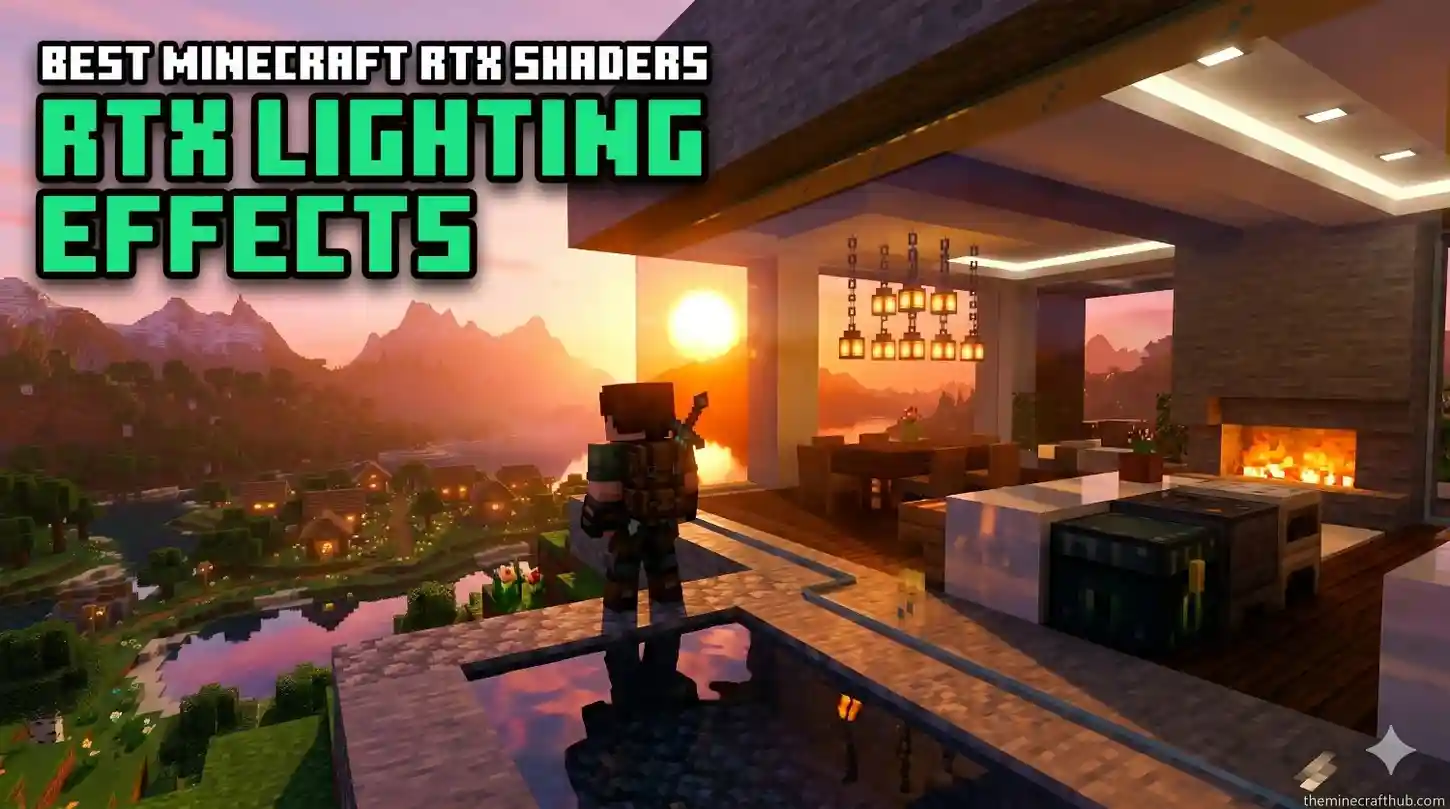
Ray Tracing completely transforms Minecraft into a hyper-realistic world with real-time sun reflections, light bouncing through stained glass, and glowing emissive ores:
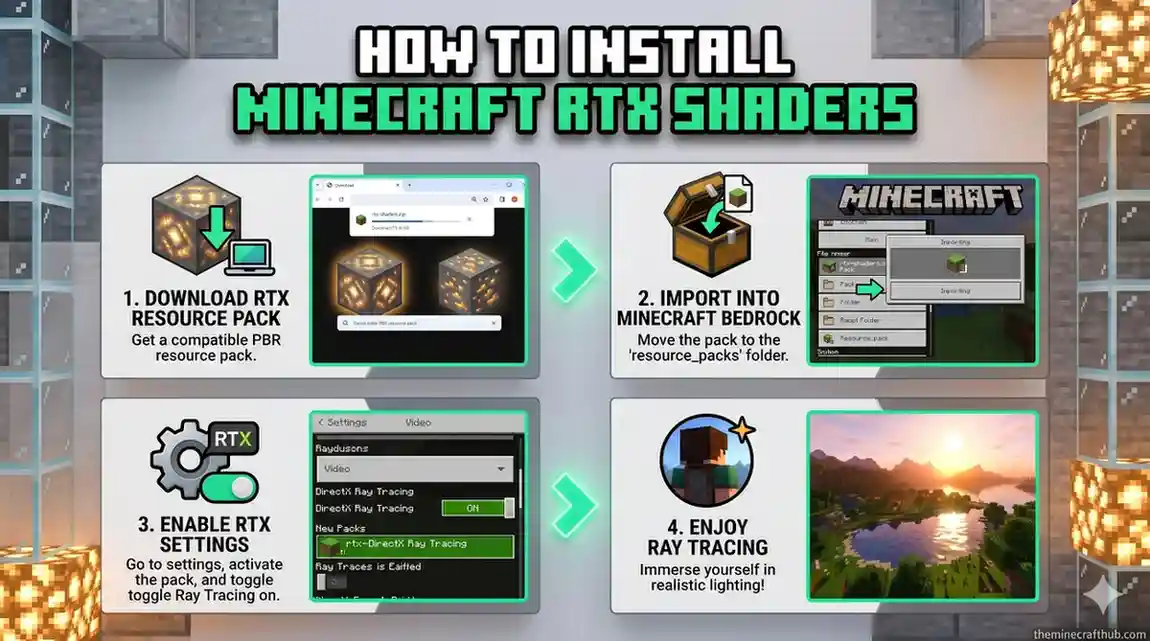
Verify GPU
Ensure your PC has an NVIDIA GeForce RTX 2060 (or higher) or an AMD Radeon RX 6000-series GPU.
Download RTX Pack
Download any PBR-enabled resource pack (like Kelly’s RTX or Defined PBR) and activate it.
Enable Ray Tracing
In-game, go to Settings > Video > Ray Tracing and switch the toggle to ON!
Turn on DLSS
Enable Upscaling (NVIDIA DLSS) for sharp 4K visuals with 60–120 FPS performance.
🛠️ Windows Repair Center (Fix Common PC Launch Errors)
🛒 Microsoft Store Error 0x803F8001
Store fails to verify the game license when launching the launcher.
wsreset.exe and press enter to reset Microsoft Store cache.🚫 Ray Tracing Toggle is Greyed Out
Cannot turn ON Ray Tracing in Video settings.
⬛ Black Screen on Startup
The red Mojang logo freezes into a black screen.
🔒 Multiplayer NAT Type Strict
Unable to join crossplay friends from PC.
Frequently Asked Questions About Minecraft for Windows
Can I play Minecraft for Windows offline?
Yes! Single-player creative and survival worlds can be played completely offline without internet connection once installed.
If I buy Minecraft on Windows, do I get Java Edition too?
Yes! Mojang bundles Minecraft: Java & Bedrock Edition for PC together. Purchasing one automatically unlocks both editions under the same Microsoft account!
Can I use an Xbox or PS5 controller on Windows PC?
Yes! Minecraft for Windows has 100% native plug-and-play controller support for USB and Bluetooth gamepads.
How do I backup my Windows Bedrock worlds?
In world settings, scroll to the bottom of the Game tab and click Export World to save your world as an instant .mcworld file anywhere on your PC.
What is the keyboard shortcut to toggle Ray Tracing on/off?
While playing with an RTX pack active, press the semicolon key (;) on your keyboard to toggle Ray Tracing on or off in real time.
Can I run Minecraft for Windows on Windows 7 or 8?
No. Minecraft for Windows requires the modern Universal Windows Platform (UWP) and DirectX 12, which are exclusive to Windows 10 and Windows 11.
Why does Minecraft for Windows run faster than Java Edition?
Because it is compiled in native C++ and optimized directly for modern multi-core PC processors and GPUs.
How do I join a custom server IP on Windows?
Click Play > Servers > Add Server > enter the Server Name, IP Address, and Port (19132), then click Save.
Can I install custom skins on Minecraft for Windows?
Yes! In the Dressing Room, click Classic Skins > Choose New Skin > select any 64×64 PNG file from your computer.
Is Minecraft for Windows safe to download?
Yes, all installation links provided on TheMinecraftHub are digitally signed and verified clean against viruses and malware.