
Minecraft APK Multiplayer Guide: Play on LAN, Hotspot & Servers (No Xbox Needed)
Playing Minecraft alone is fun, but surviving with friends makes the adventure ten times better! Whether you want to play at home over Wi-Fi, in the car using a mobile hotspot without internet, or join free online servers, here is the complete multiplayer guide for Minecraft APK.
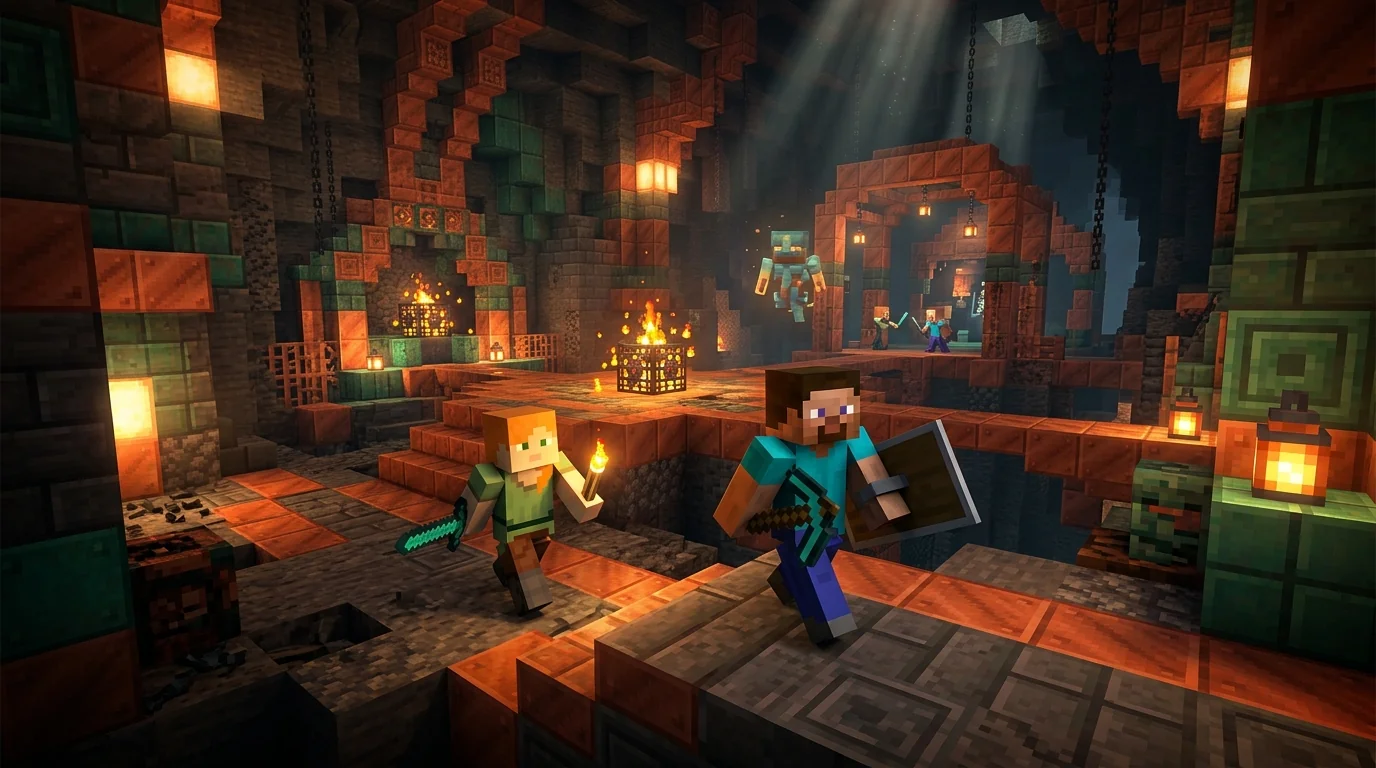
Method 1: Local Wi-Fi Multiplayer (Same House Setup)
If you and your friends are connected to the same home Wi-Fi router, you can join each other’s worlds instantly without needing a Microsoft account:
📶 Easy 3-Step Setup:
- Connect to Same Wi-Fi: Make sure all phones and tablets are connected to the exact same Wi-Fi router.
- Enable LAN in World Settings: The player hosting the game opens world settings, goes to Multiplayer, and toggles ON “Multiplayer Game” and “Visible to LAN Players”.
- Join from Friends Tab: The other players open Minecraft, tap Play > Friends tab, and the host’s world will appear under LAN Games!
Method 2: Portable Mobile Hotspot (Play Anywhere with Zero Internet!)
Did you know you can play multiplayer on a road trip, school bus, or airplane without any Wi-Fi router or cellular data?
📱 Hotspot Offline Setup:
- Turn on Mobile Hotspot: One player turns on their phone’s Personal Hotspot (mobile data can be turned OFF).
- Friends Connect to Hotspot: All other friends connect their Wi-Fi to that phone’s hotspot network.
- Start World: The hotspot host launches a single-player world. It instantly appears under the Friends tab on everyone else’s screen!
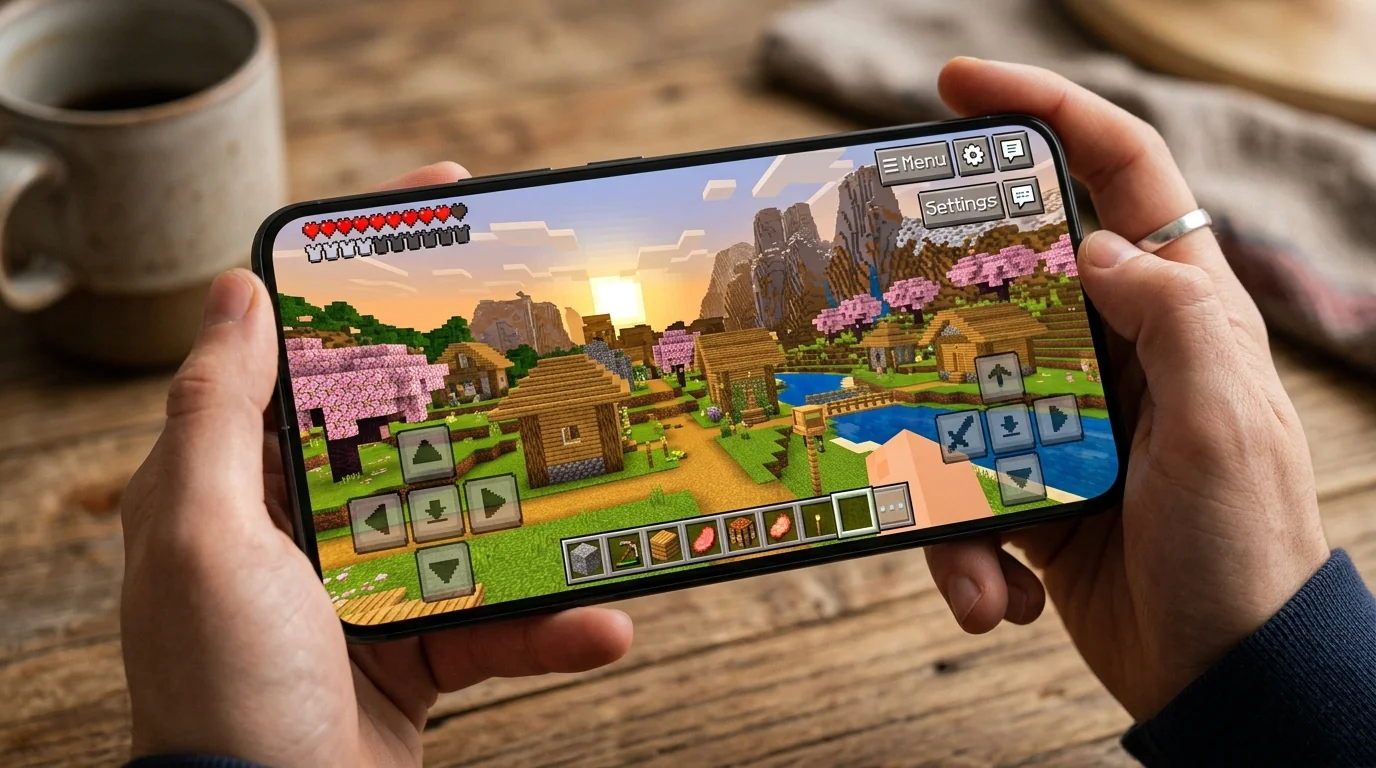
Method 3: Free 24/7 Custom Bedrock Servers (Aternos & Minehut)
Want a world that stays online 24/7 even when the host closes the app? You don’t have to pay for Minecraft Realms. You can create a free custom server:
- Go to a free hosting provider like Aternos.org or Minehut.com on your phone browser.
- Create a free account and choose Bedrock Edition software.
- Click Start Server and note your custom Server Address (IP) and Port (e.g.,
19132). - In Minecraft APK, tap Play > Servers tab > Add Server.
- Type in your server name, IP address, and Port, then click Play!
Method 4: Crossplay with Java Servers via GeyserMC
If your friends play on PC Java Edition, you can still play together! Ask the Java server owner to install the free GeyserMC plugin. GeyserMC translates Java packets into Bedrock packets in real-time, allowing mobile APK players to explore hypixel-style servers and survival worlds alongside PC Java players seamlessly.
Troubleshooting: Why Can’t I See My Friend’s World?
- Version Mismatch: Both devices must run the exact same version build (e.g., both on 1.21.130).
- AP Isolation on Router: Some guest Wi-Fi networks block devices from talking to each other. Switching to a mobile hotspot instantly fixes this.
- Local Network Permission: On Android 12+ and iOS, ensure Minecraft has permission to scan the local network in device settings.
Frequently Asked Questions
Can I play multiplayer on Minecraft APK without signing into Microsoft?
Yes! Both Local Wi-Fi (LAN) and Mobile Hotspot methods work completely offline and do not require any Microsoft or Xbox account login.
How many players can join a local Wi-Fi hotspot game?
Up to 5 simultaneous players can join a standard local host world, while custom dedicated servers support 20 to 100+ players.
Why does it say “Unable to connect to world”?
This error is almost always caused by different update versions between the host and joining player. Ensure both have updated to the same APK build.
Can mobile APK players play with friends on Nintendo Switch or PS5?
Yes, as long as both players sign into a free Microsoft account and add each other’s Xbox Gamertags, you can crossplay across mobile and console.
Does playing on a mobile hotspot use up cellular data?
No! The hotspot simply creates a local wireless bridge between devices. You can turn off cellular data completely and local multiplayer still works flawlessly.
What is the default Bedrock server port?
The standard default port for all Minecraft Bedrock/PE servers is 19132.
Can I use custom skins in local multiplayer?
Yes! In the Dressing Room, ensure the setting “Only Allow Trusted Skins” is turned OFF so your friends can see your custom imported skin.
How do I make myself admin/operator on my friend’s world?
The world host can pause the game, tap the player list, click the icon next to your name, and change permissions from Member to Operator.