
How to Update Minecraft APK Without Losing Worlds (Android 11-15 Guide)
Have you spent weeks building a massive Minecraft castle, only to lose everything when updating to the latest version? You are not alone! Here is the complete beginner-friendly guide to updating your Minecraft APK safely without losing a single block.
On Android 11, 12, 13, 14, and 15, uninstalling Minecraft automatically deletes your internal world saves folder. Always follow the Direct Overwrite or Backup First methods below.
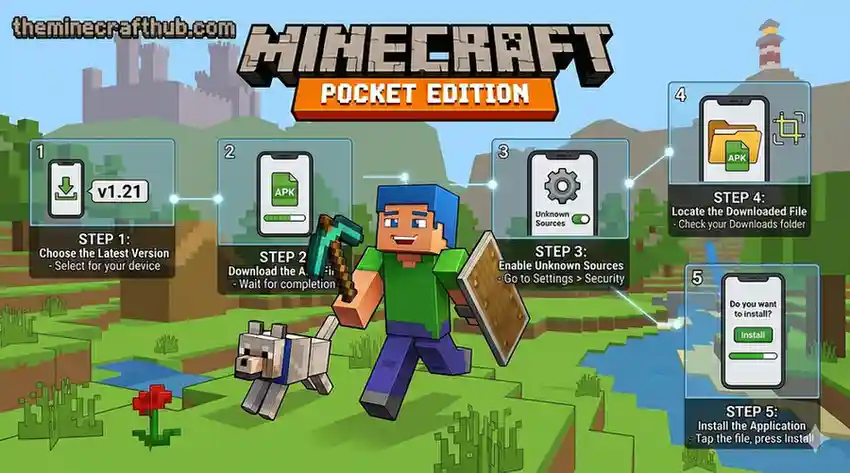
Step 1: Check Your File Storage Location
Before doing anything, open Minecraft on your phone and check where your worlds are saved:
- Open Minecraft and tap Settings.
- Scroll down to Storage on the left menu.
- Look at File Storage Location:
- Application: Your worlds are stored inside app memory. You must export them or switch to External.
- External: Your worlds are stored in your phone’s memory folder. This is the safest setting!
Step 2: How to Backup Your Worlds (Android 11–15 Scoped Storage)
Because Android 11+ locks the Android/data folder, use a free file manager like ZArchiver (from Google Play Store) to view your world files:
📍 Exact Path to Your Minecraft Worlds:
Android/data/com.mojang.minecraftpe/files/games/com.mojang/minecraftWorlds
Inside this folder, each subfolder is one of your survival or creative worlds.
Copy the Folder
In ZArchiver, long-press the minecraftWorlds folder and tap Copy.
Paste in Downloads or Documents
Navigate to your phone’s Downloads or Documents folder and paste the backup folder there.
Upload to Google Drive
For 100% peace of mind, upload this zip file to your free Google Drive cloud storage.
Step 3: The Safe “Direct Overwrite” Installation
Now that your backup is secure, you can update without uninstalling:
- Download the new Minecraft APK update file.
- Open your file manager and tap the new APK file.
- Android will show a popup asking: “Do you want to update this app? Your existing data will not be lost.”
- Tap Update (or Install).
- Once finished, tap Open. Your existing worlds, skins, and inventory items will all be right where you left them!
This only happens if the new APK was built with a different signature key than your old one. In that case, make sure your world backup from Step 2 is saved in Downloads, uninstall the old app, install the new APK, and copy your
minecraftWorlds folder back into place!Frequently Asked Questions
Can I update from 1.20 to 1.21 without losing my world builds?
Yes! Minecraft automatically upgrades your world format when you load your old map in the new version. Your existing buildings remain untouched, and new 1.21 features (like Trial Chambers) will generate in unexplored areas of your world.
How do I export a single world directly from inside Minecraft?
Go to your Worlds list, tap the Pencil Edit icon next to your world, scroll down to the bottom of Game settings, and tap Export World. This saves an instant .mcworld file to your Downloads folder.
Why does Android 13 and 14 block access to the data folder?
Google introduced Scoped Storage security to prevent malicious apps from reading personal files. Using ZArchiver or granting special document permissions bypasses this block safely.
Will my custom texture packs and skins stay after updating?
Yes! As long as you use the direct overwrite update method, your imported resource packs, behavior packs, and custom skins remain preserved.
What should I do if my world crashes after updating?
Open the world edit menu, scroll to the bottom, and click Copy World. Loading the duplicate copy usually resolves chunk loading errors.
How often should I backup my Minecraft worlds?
We recommend backing up your main survival world at least once a month, and always right before installing any major game update.
Can I transfer my Android world to PC or iOS?
Yes! Export your world as a .mcworld file, send it via Google Drive or email, and double-click or tap it on PC or iPhone to load it automatically.
Is it possible to recover a deleted world without a backup?
Unfortunately, once an app is uninstalled on Android without prior backup, Android wipes the internal data partition permanently. This is why keeping a backup in your Downloads folder is essential!